

Extraction 2 provides a fully customizable template for reviews that require flexible field structures, narrative data capture, or evidence mapping. It is well suited to descriptive, exploratory, or text-heavy reviews where comparison groups are not central to the analysis. You build the template from scratch with your own headers, sections, and field types, giving you complete control over what data you collect and how it's organized.
In this article we will provide you with an overview of the features and functionality available in Extraction 2.
Templates
The template editor allows you to build a fully custom data extraction and quality assessment template from scratch. You can create, pilot, and update your template at any time.
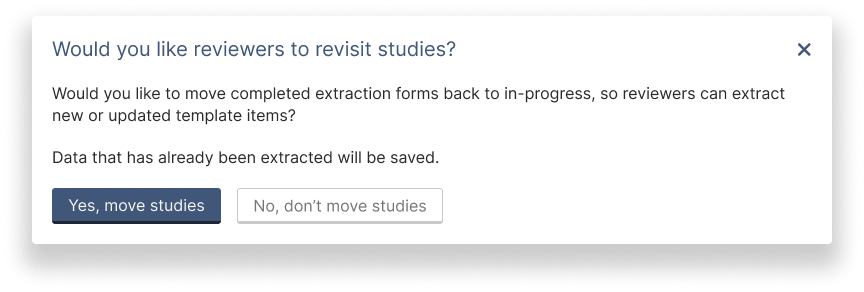
Updates can be made throughout the extraction process, and any changes will be applied to all study extraction forms for consistent data collection. If you update the template after extraction has begun, you can decide whether to revisit completed studies.
Data extraction template
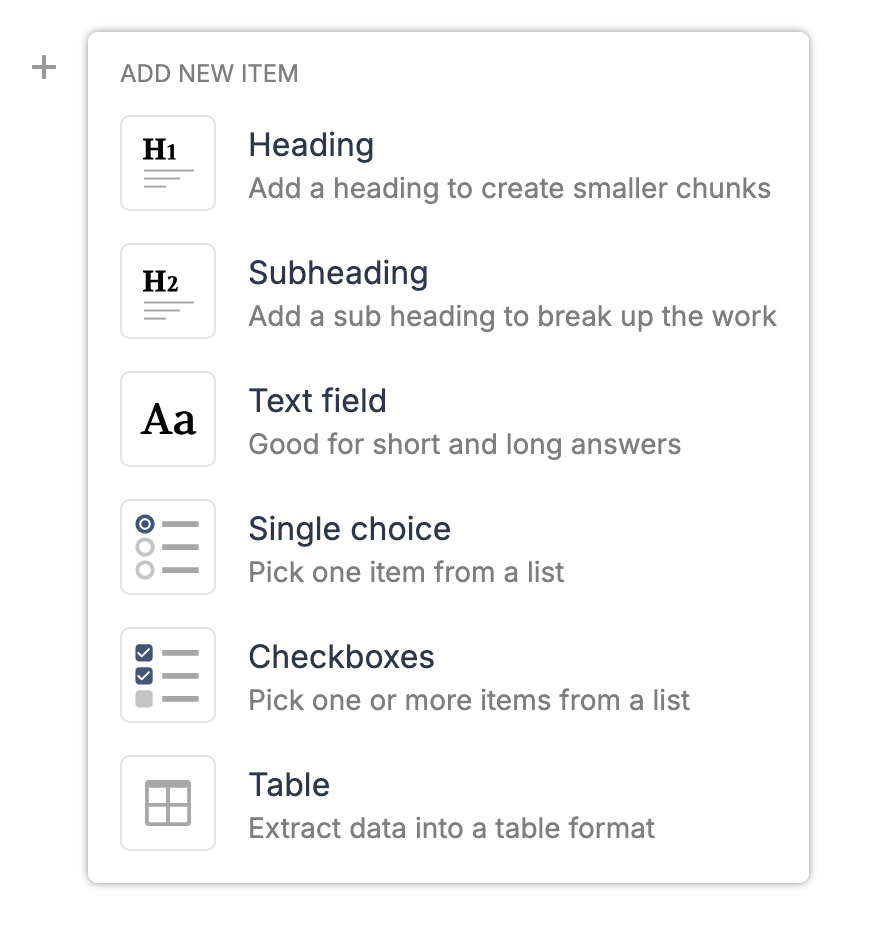
In Extraction 2, you build your template using the following field types:
Headings (H1): Add a heading to create main sections
Subheadings (H2): Break up sections into smaller chunks
Text fields (Aa): Use for free text of any length, ideal for narrative data, quotes, or detailed descriptions
Single choice: Use when you have a defined list and extractors should choose one option
Checkboxes (multi-select): Use when extractors can choose one or more options from a list
Tables: Use to collect multiple data points in a structured format; rows and columns are fully customisable
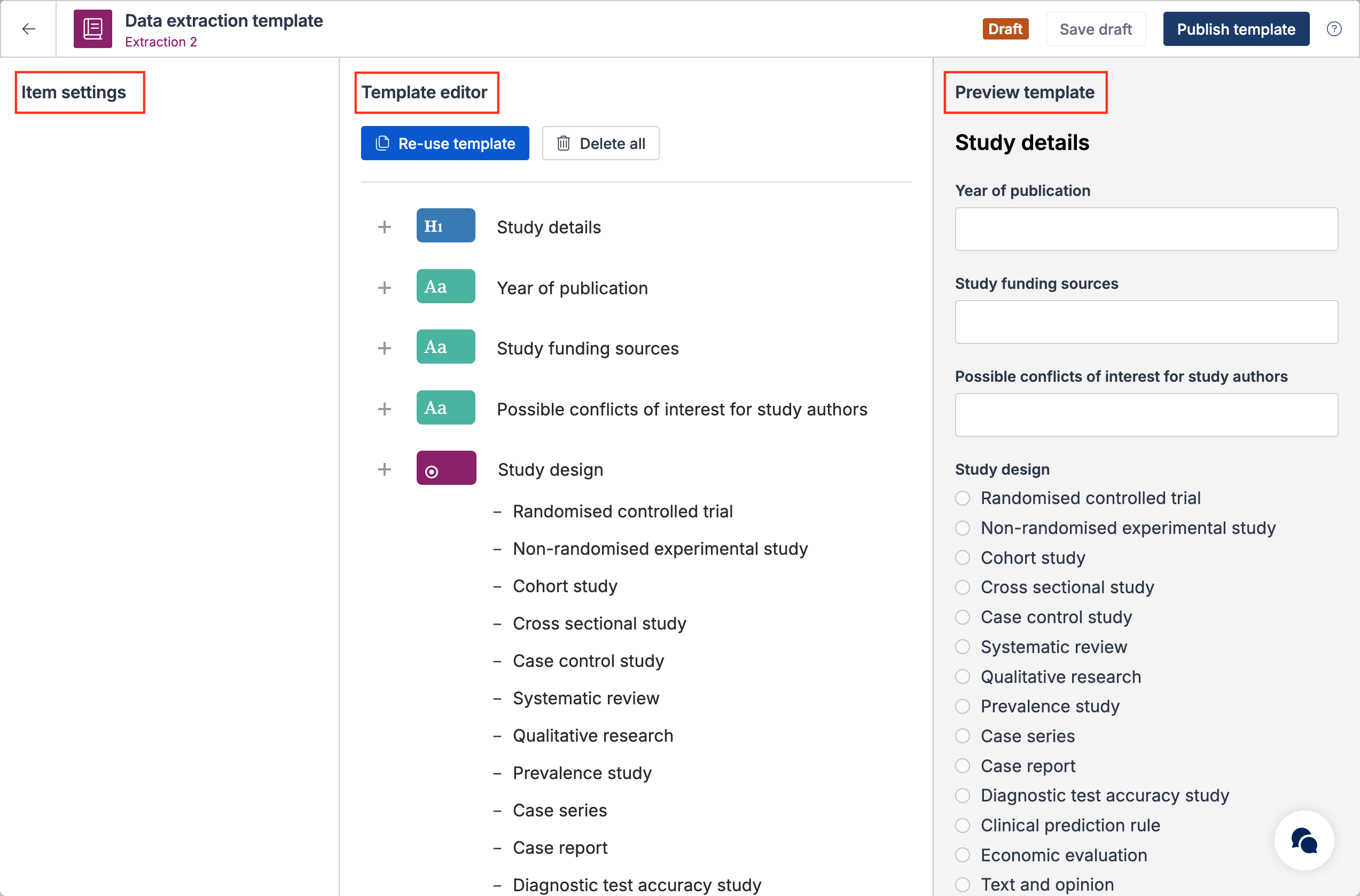
The template editor shows your template structure, with a live preview of the template on the right showing how extractors will see the form. Item settings on the left is where you can add instructions for extractors.
Quality assessment template
When creating a quality assessment template, you can choose to use the default Cochrane Risk of Bias tool, or start from scratch to build a custom tool.
Quality assessment is optional. It only appears for extractors if a QA template is published.
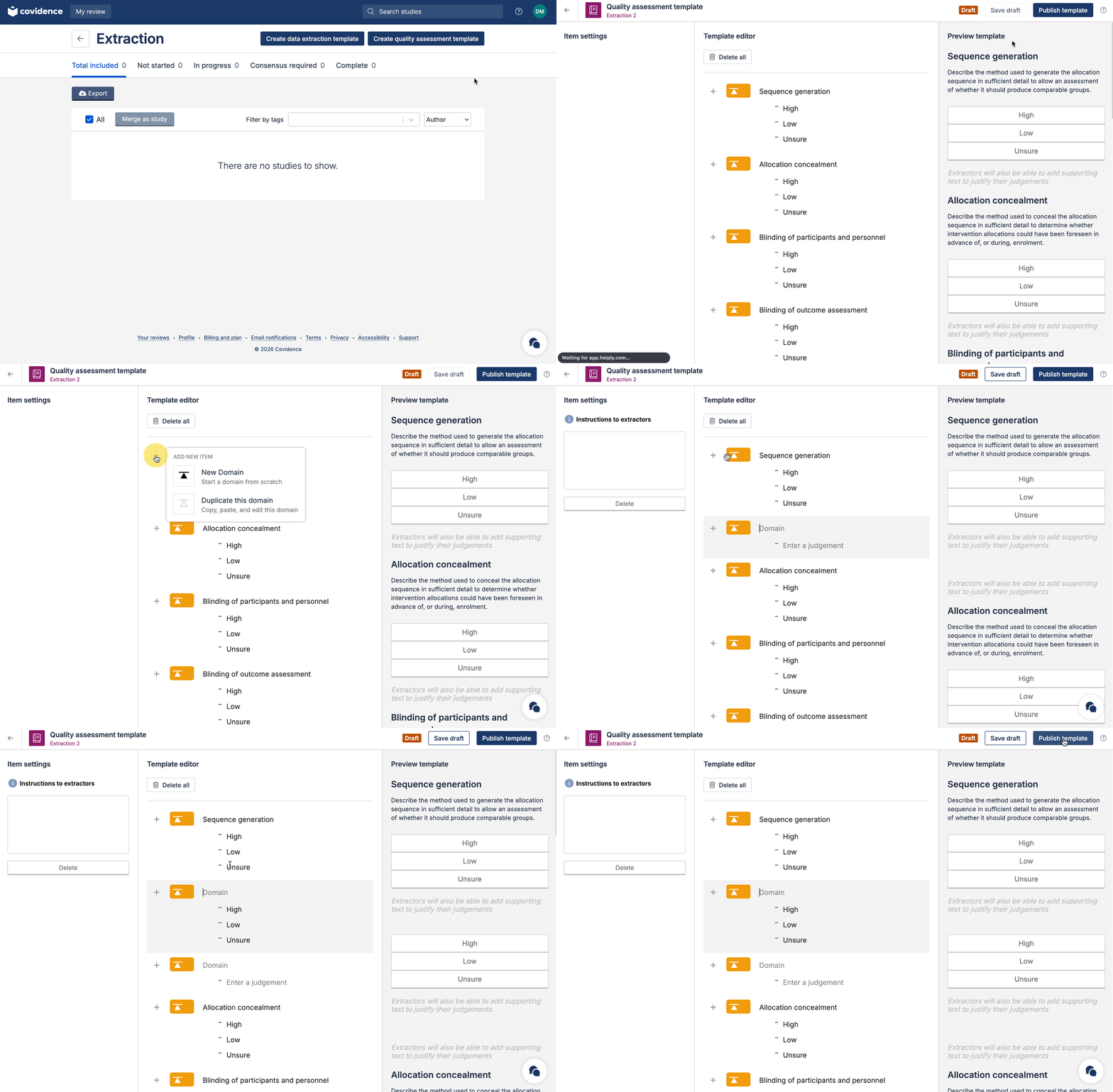
You can add multiple quality assessment tools to the same template by adding the tool name to domain labels (e.g., "RoB: Random sequence generation" or "NOS: Selection").
Completing data extraction for a study
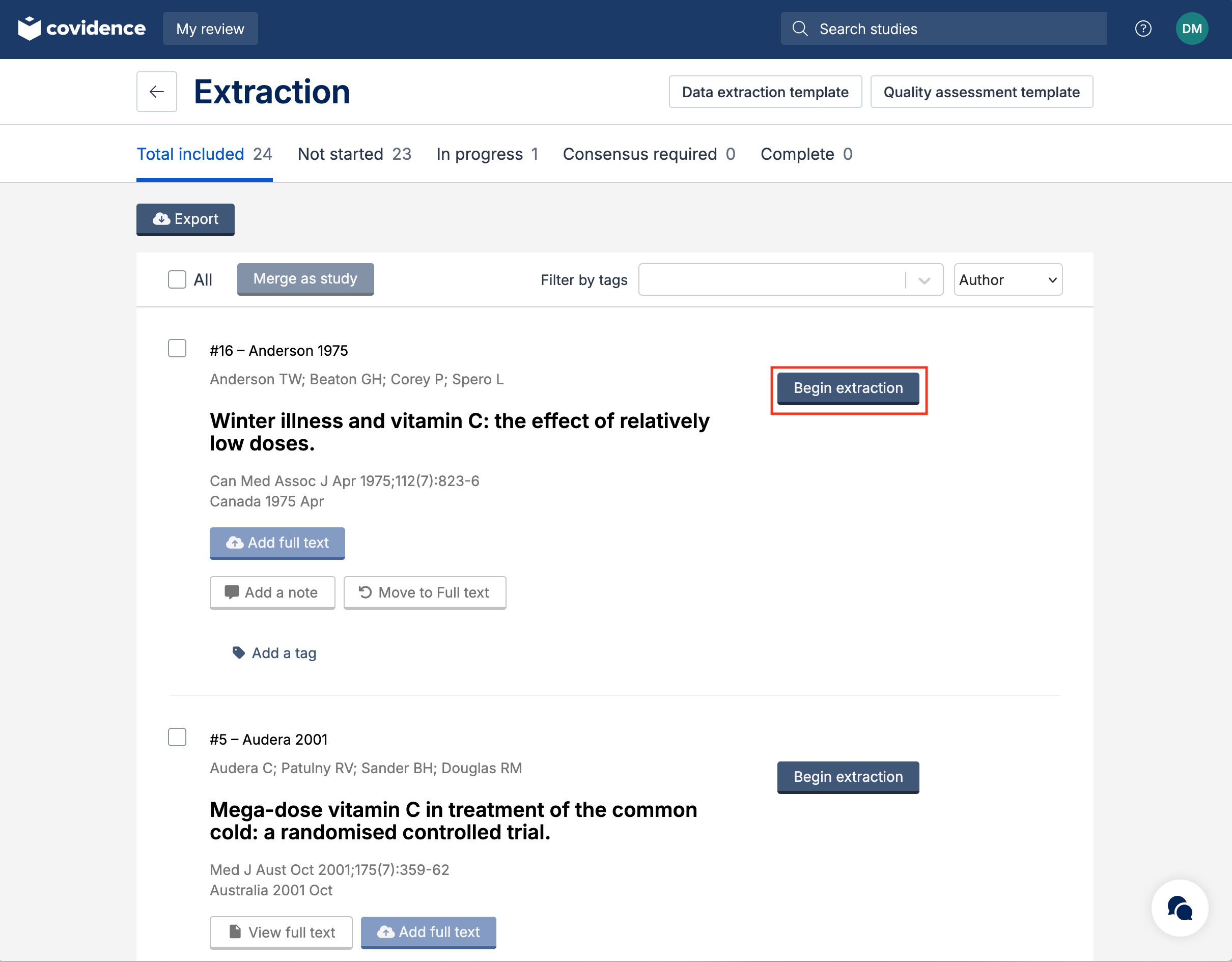
Once you've published your data extraction template, a Begin Extraction button will appear for each study. Two reviewers can be assigned to each study (or one, if single-reviewer mode is enabled).
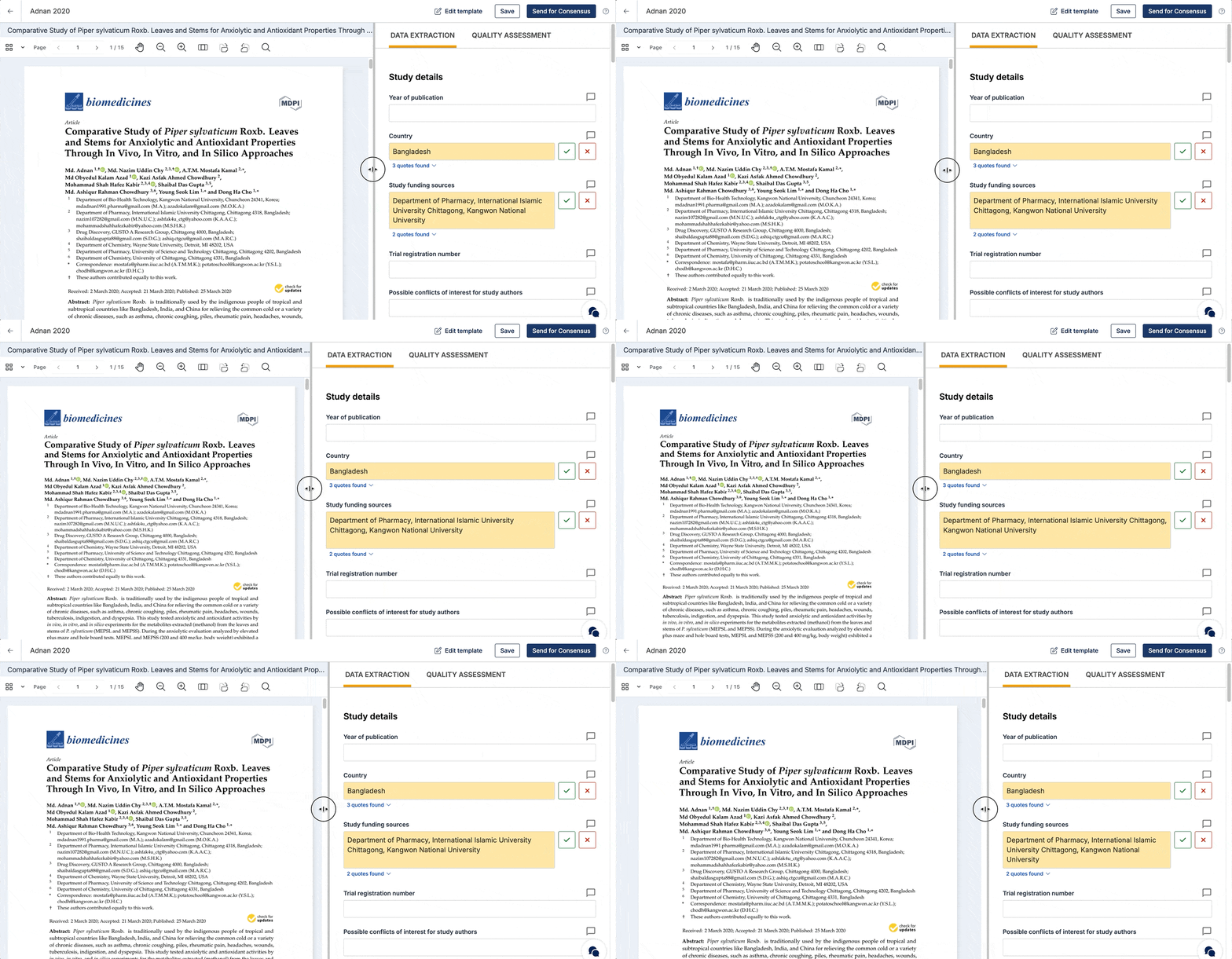
The PDF and extraction form are shown side by side. The PDF viewer allows you to zoom, rotate, and search for text within the document. You can adjust the relative width of the PDF and extraction panels by dragging the divider.
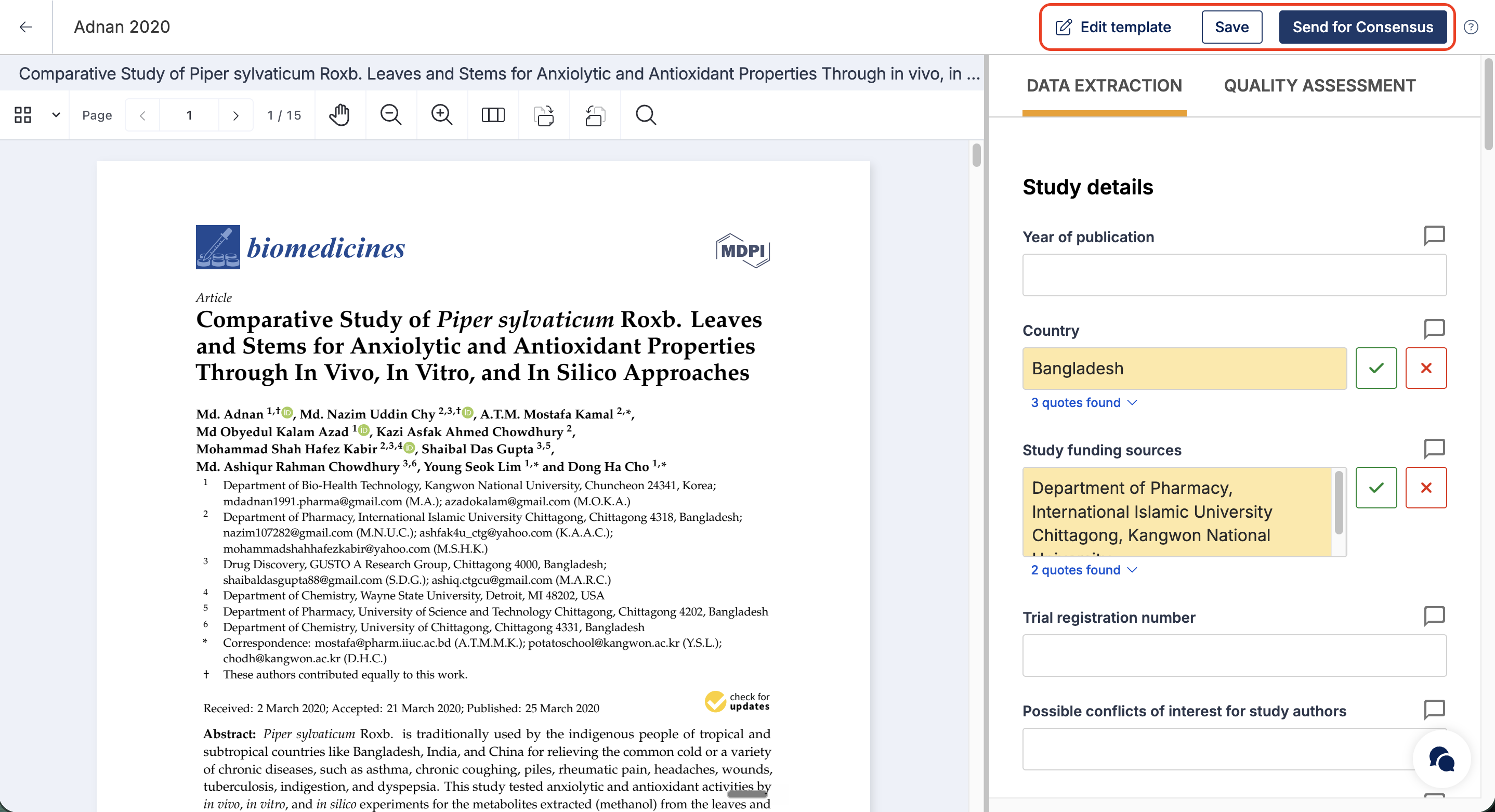
Select Save periodically and when you leave the extraction screen. Once you’ve finished data extraction and quality assessment for that study, press Send for Consensus.
Select Edit template to easily navigate to the template, make changes and then go directly back to the study form.
Extraction suggestions
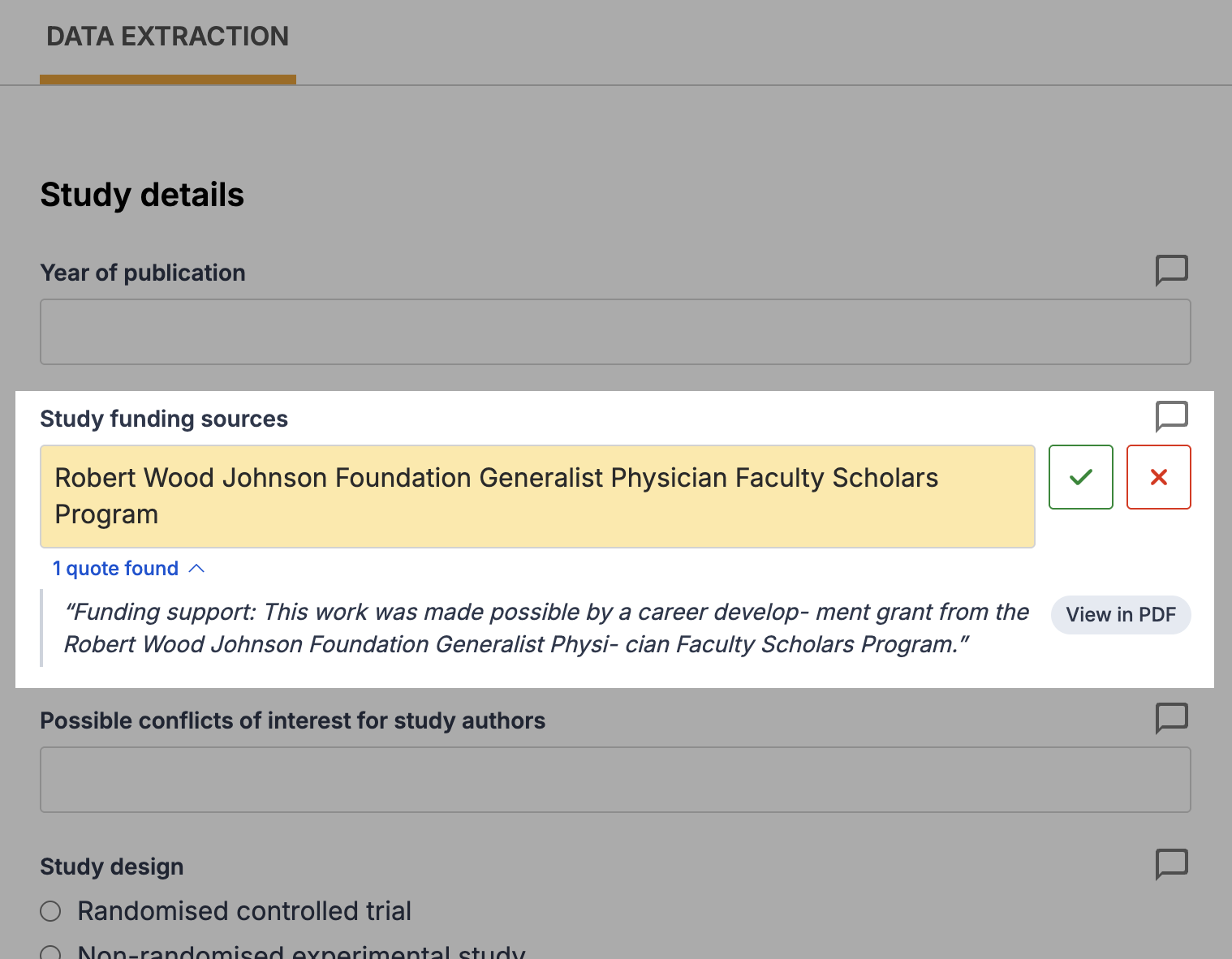
Covidence can automatically suggest a value for many default fields, based on the study's full-text PDF. This feature is enabled by default.
When a suggestion is available, it will appear in the field. Reviewers must explicitly accept or reject each suggestion – suggestions are never saved automatically. If no suggestion is available, the field appears as a normal input. A supporting quote from the PDF is shown alongside the suggestion to help reviewers assess its accuracy.
Suggestions are only generated for studies with an accessible full-text PDF in Covidence.
For full details on the model, accuracy, and how to report feature usage in your manuscript, see AI feature: Extraction suggestions.
Completing quality assessment for a study
To access quality assessment for a study, select the Quality Assessment tab within the extraction form.
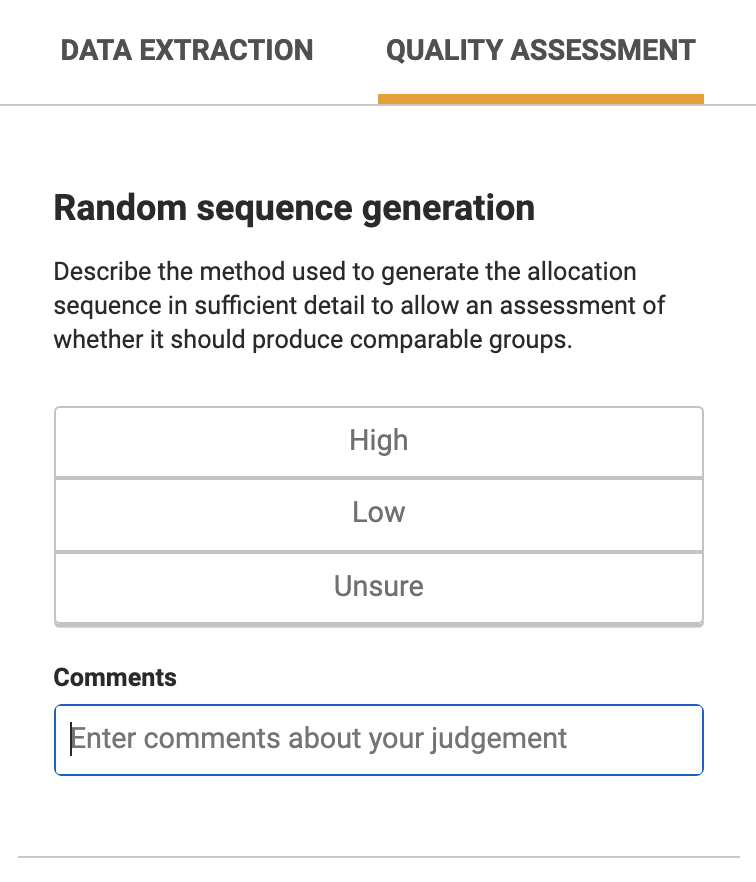
Complete both Data Extraction and Quality Assessment (if required) before sending for consensus.
Single reviewer extraction
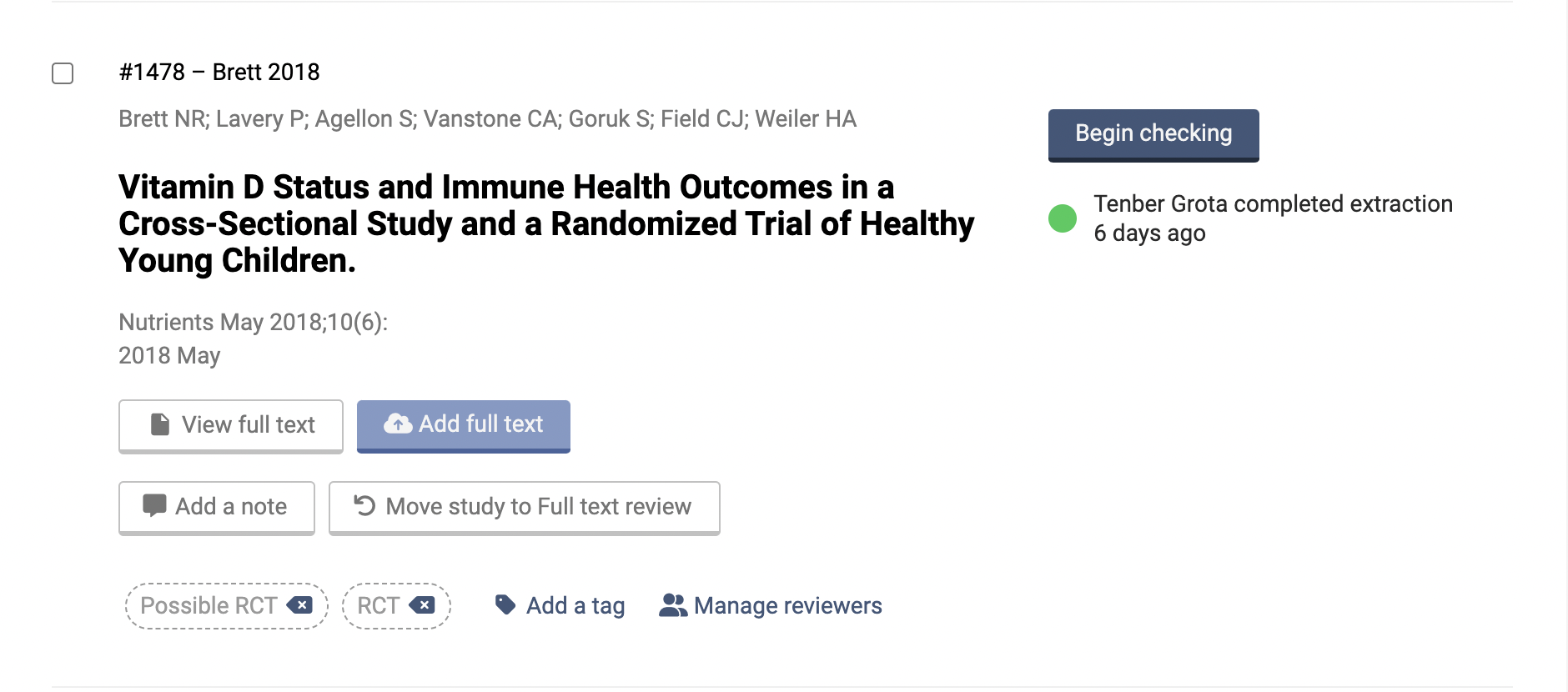
Extraction 2 supports single-reviewer extraction. To enable this, go to Review Summary > Settings > Review settings and set "Reviewers required for data extraction" to 1.
In single-reviewer mode, once extraction is complete, a Begin checking button appears. Any team member can check the extraction, and the checker can override data in the final decision column if needed.
Comparison and consensus
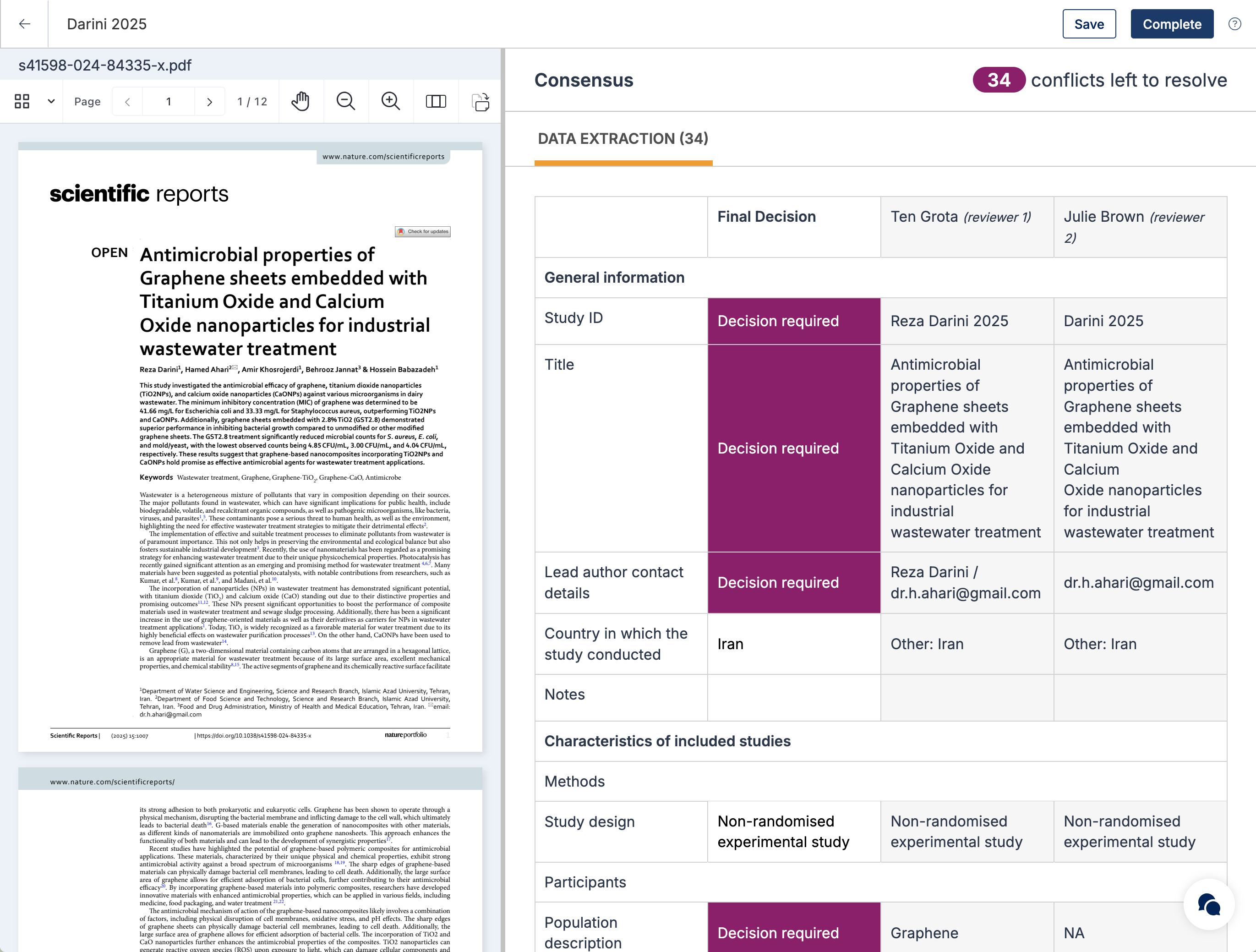
After both reviewers have submitted their forms, the study moves to Consensus required. The consensus form shows both reviewers' responses side by side, with conflicts flagged as "Decision required."
To resolve a conflict, select the most accurate response or type in a final decision. Comments added during extraction are visible to help inform decisions.
Once all conflicts are resolved, press Complete.
Export
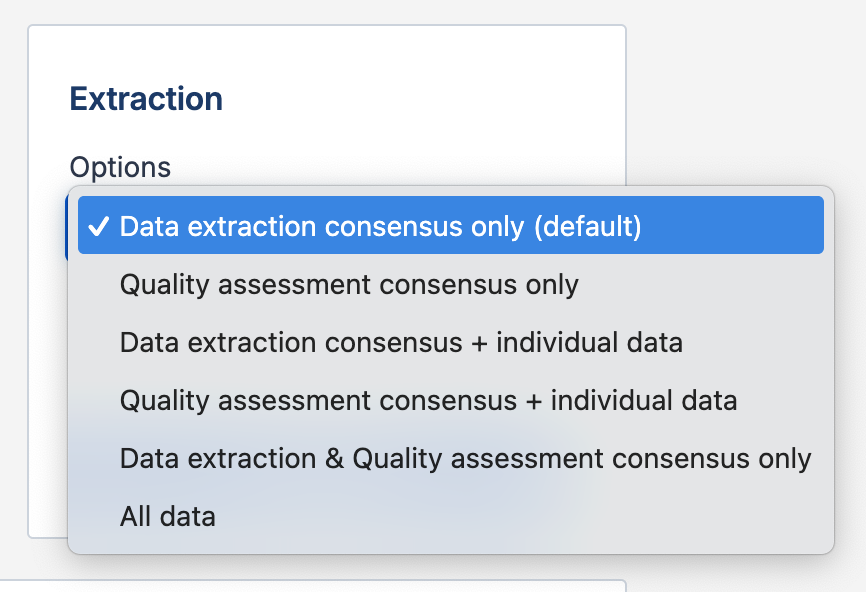
You can export data from Extraction 2 in CSV format with the following options:
Consensus only data: The final consensus data for each completed study (data extraction and/or quality assessment)
Individual reviewer data: In progress data for each reviewer (note: this contains unblinded data)
When opened in Excel, study IDs appear in rows and extracted data fields appear in columns. Custom table rows and columns are exported as separate columns.
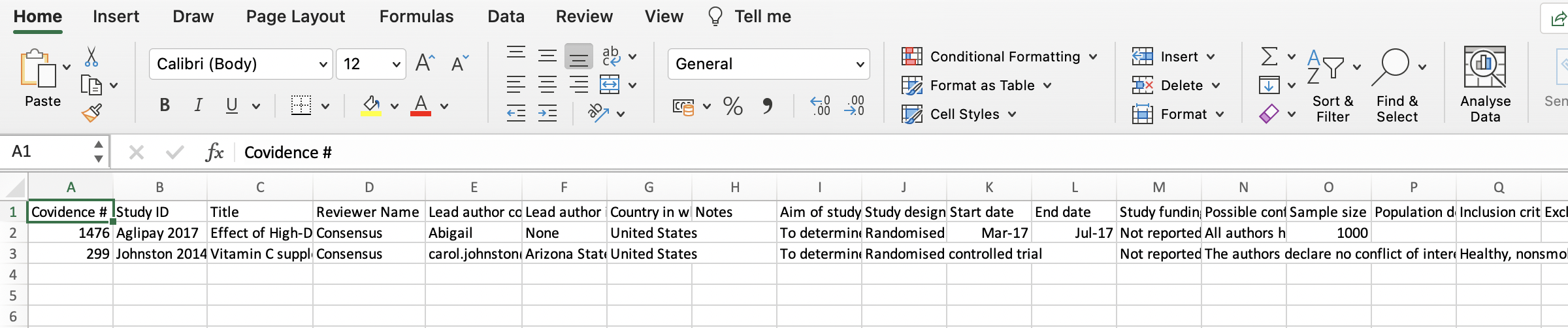
We recommend piloting your template on a few studies and exporting early to see how the data will appear in your spreadsheet.
Summary: When to use Extraction 2
Extraction 2 is best when:
Your goal is mapping or describing evidence rather than comparing numerical outcomes across groups
You need complete flexibility to define custom fields and sections
You're conducting scoping reviews, literature reviews, or qualitative reviews
You need extensive free-text fields for narrative data capture