


Welcome!
University of South Africa (UNISA) is excited to offer its researchers, staff, and students access to its unlimited institutional-wide licence to Covidence.
Covidence is a web-based software platform that streamlines the production of systematic/scoping/rapid/literature/umbrella reviews. It supports reference/citation screening, full-text review, risk of bias assessment, extraction of study characteristics and outcomes, and the export of data and references.
Why use UNISA's access to Covidence?
Unlimited references/citations for each review
Unlimited number of reviewers for each review
Unlimited number of reviews
Full access to all the functions and features
How to access UNISA's licence account with Single Sign-On (SSO):
New Users - If you have not used Covidence with your UNISA email address, you need to create an account. You can do this simply by signing in via Single-Sign-On (SSO).
Go to the Covidence SSO Sign-in page
Enter your UNISA email address
You will be redirected to UNISA's SSO login page, and can enter your university credentials
If you have entered the correct credentials, you will be redirected back to Covidence
A one-off prompt will appear to check if you have an existing account with a different email address, asking if you would like to connect it to your university's SSO and keep your work in one place. Sign in if you do have another account with your credentials OR continue with 'Create a New Account'
Existing Users (Option 1) - If you have an account in Covidence with a non-UNISA email address:
Sign in to your account using your non-university email address
Add your UNISA email address
Verify it via the verification email that you will receive
Sign out of your account
Go to the Covidence SSO Sign-in page
Enter your UNISA email address
You will be redirected to UNISA's SSO login page, and enter your university credentials
If you have entered the correct credentials, you will be redirected back to Covidence
Existing Users (Option 2)- If you have previously used Covidence and already have a user account associated with your UNISA email address, simply log in via SSO to see your existing reviews and to create new reviews.
Go to the Covidence SSO Sign-in page
Enter your UNISA email address
You will be redirected to UNISA's SSO login page, and can enter your university credentials
If you have entered the correct credentials, you will be redirected back to Covidence
Alternatively, users can sign in via the Covidence sign-in page and select the "Sign in with SSO" option.
Please note: If you have gone to the Start a New Review page and the University licence is missing, where you think it should be available, check first to ensure you have signed in to Covidence via your UNISA SSO.
Starting a review using the licence:
Sign in to Covidence
Select “Start a new review”
Under 'Which account do you want to use?', make sure to select - "University of South Africa (UNISA)"
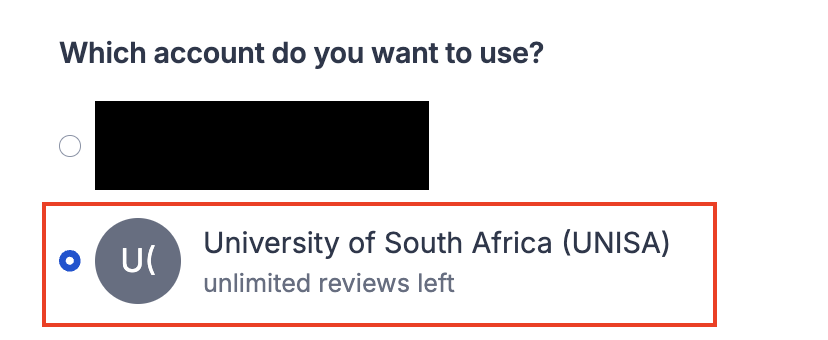
Please note: If you have started a review in the wrong licence, please contact support@covidence.org
Reviews created using the university institutional account will be visible to Covidence subscription administrators at the university. Reviews created using your user account are only visible to you.
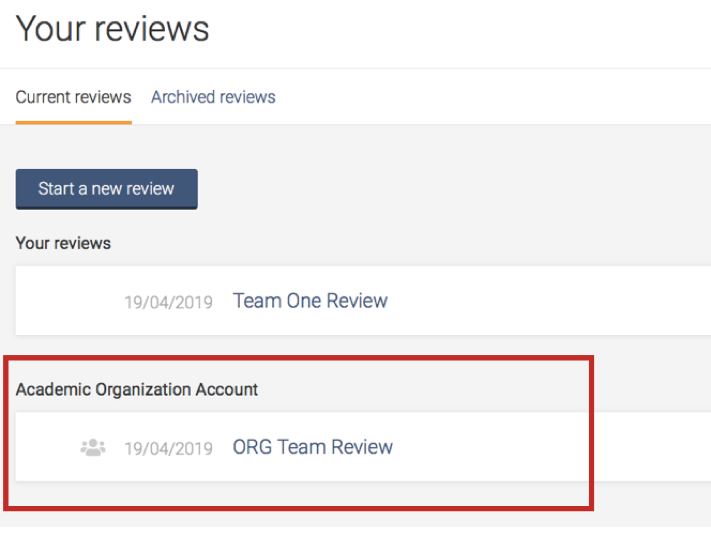
Once you have created a review or accepted an invitation to another account review, the title will appear in a separate section on your account homepage:
Scheduled Online Training Workshop
The University Library scheduled a 3-session Workshop Day on Monday 30th March 2026, to support its researchers to learn in streamlining their review process and evidence synthesis. If you missed it, watch it on demand!
More about Covidence
The interface is intuitive and suitable for students and experienced reviewers. Covidence can save time on repetitive review tasks, enabling faster review production and more time for analysis and interpretation.
Discover more about Covidence on each link:
Import references - Covidence works seamlessly with your favourite reference managers like EndNote, Zotero, RefWorks, Mendeley or any tool that support RIS, CSV or PubMed XML formats. Covidence can automatically remove duplicates for you.
Screen title & abstract - Breeze through screening with keyword highlighting & a lightning-quick interface. Covidence keeps full records of who voted and supports single or dual screeners.
Bulk PDF import - Transfer PDFs stored in your reference manager to Covidence in a few clicks.
Screen full text - Decide quickly on studies in full text. Capture reasons for exclusion and any notes so you can resolve any disagreements quickly, with a click of a button.
Create forms - Be in control and stay focused on your PICO question. Customisable extraction forms mean you only spend time extracting what you need.
Customise risk of bias - Automatically populate your risk of bias tables by highlighting and commenting on the text directly in your PDF.
Conduct data extraction - Extract data efficiently with a side-by-side view of your customised form and PDF. Then, when you are done, easily compare your form with other reviewers.
Export - Covidence exports to all the common formats so you can continue your review in your preferred software.
Collaborate - You can invite other reviewers (including external colleagues) to work with you on the project.
Support from Covidence
Covidence offers a range of available resources and support to help you along the way with your systematic review process.
To get familiar with how a Covidence workflow works, you can try our pre-set Demo review. This will allow you to gain hands-on experience and better understand the process. You will find it at the bottom of your dashboard once you have signed in. Give it a go and feel free to explore!
Getting started with Covidence - video tutorials that guide you through the initial area to get you started.
Covidence Knowledge Base - home to all of our comprehensive articles, instructions and advice to FAQs.
Covidence Academy - Learn and understand the essentials of systematic reviews and gain insight with expert-led training and content to guide you through every step of the review process.
Covidence eBook Collection - Download our step-by-step practical guides for Systematic Review Success.
Monthly Open Training Webinars - Join our Community Team for free webinars (registration required) or watch our recent recordings without delay.
Online Support Team- contact our team directly for support on your review by emailing support@covidence.org
When logged into your account, you can also easily contact the Support Team via the chat icon in the lower right corner, and the comprehensive articles from our Knowledge Base from the '?' icon on the upper right corner of the window.
Maintaining Access to Your Work When Leaving the University
You are required to add a secondary email address before leaving, as this will ensure uninterrupted access to your Covidence account.
If you need to log back into your Covidence account but cannot because you don’t have access to your university email address anymore, please get in touch by emailing support@covidence.org.