


Welcome!
University of Cumbria - NIHR Mental Health Leaders Award (MHLA) is pleased to offer its staff and researchers access to its licence to Covidence.
Eligibility: staff and postgraduate students conducting any type of evidence review focused on mental health.
Scheduled Online Training
We're excited to offer a 3-part series of live online training sessions designed to help NIHR users get the most out of Covidence. Each session is free to attend. Please register using the links below. We hope to see you there!
Covidence Overview
Wednesday 2 December 2026, 11:00-12:00pm UK time
Register here
Step 1: Setting Up Your Review
Tuesday 8 December 2026, 2:00-3:00pm UK time
Register here
Step 2: Screening in Covidence
Wednesday 16 December 2026, 12:00-1:00pm UK time
Register here
What is Covidence?
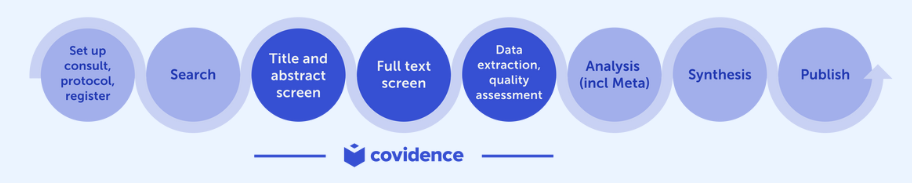
Covidence is a web-based software platform that streamlines the production of systematic reviews. It supports reference/citation screening, full-text review, risk of bias assessment, extraction of study characteristics and outcomes, and the export of data and references.
The interface is intuitive and suitable for students and experienced reviewers. Covidence can save time on repetitive review tasks, enabling faster review production and more time for analysis and interpretation.
Why use the University of Cumbria's access to Covidence?
Unlimited references/citations for each review
Unlimited number of reviewers for each review (irrespective of their affiliation)
Full access to all the functions and features
How to launch a review in Cumbria's licence account
Request your review by emailing Aliah Malik - aliah.malik@cumbria.ac.uk (make sure to use your university email address) with the following information:
Review title and main research question/objective
Type of review
A brief summary of the research gap
What is the purpose of this review? (Masters/PhD thesis, Internal research project, Externally funded research project, personal learning/skill development)
Your faculty and job role
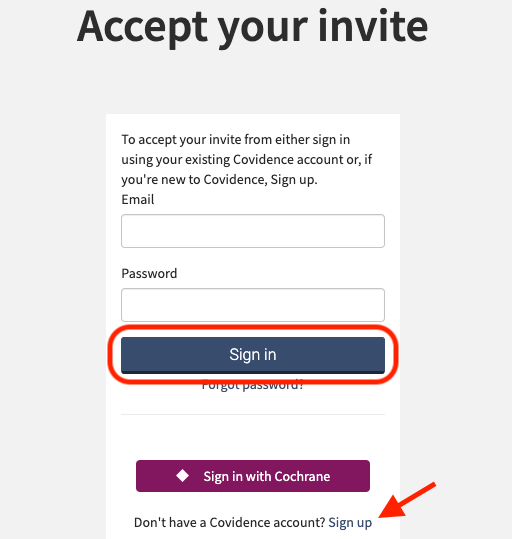
Once you have been approved, an email invitation will be sent to you to join your review (you may need to check your spam folder): click 'Accept invitation' and follow the steps.
Sign in to your existing Covidence account if you already have one with your university email OR sign up for a new account (make sure to use your university email address)
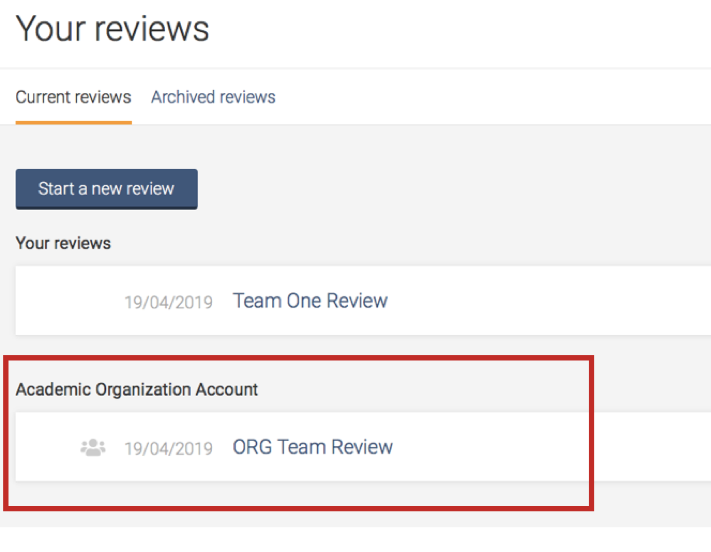
Once you have successfully accepted the invitation to the review, it will appear in a separate section on your account homepage:
After joining the MHLA licence account, you will be able to sign in from anywhere by visiting: https://www.covidence.org/sign_in
Working with review team members?
Once you are part of the review, you can add co-reviewers.
From the homepage (Your reviews), select the review you wish to add co-reviewers to and click on “Settings”.
From the review Settings, navigate to the “Reviewers” tab.
Click on “Invite another reviewer” and enter your reviewer’s first name and email address to invite them. You can invite internal and external reviewers to work.
More about Covidence
Discover more about Covidence on each link:
Import references - Covidence works seamlessly with reference management software such as EndNote (Desktop or Online), or any tool that supports RIS or other file formats. Covidence can automatically remove duplicates for you.
Screen title & abstract - Breeze through screening with keyword highlighting & a lightning-quick interface. Covidence keeps full records of who voted and supports single or dual screeners.
Bulk PDF import - Transfer PDFs stored in your reference manager to Covidence in a few clicks.
Screen full text - Decide quickly on studies in full text. Capture reasons for exclusion and any notes so you can resolve any disagreements quickly, with a click of a button.
Create forms - Be in control and stay focused on your PICO question. Customisable extraction forms mean you only spend time extracting what you need.
Customise risk of bias - Automatically populate your risk of bias tables by highlighting and commenting on the text directly in your PDF.
Conduct data extraction - Extract data efficiently with a side-by-side view of your customised form and PDF. Then, when you are done, easily compare your form with other reviewers.
Export - Covidence exports to all the common formats so you can continue your review in your preferred software.
Collaborate - You can invite other reviewers (including external colleagues) to work with you on the project.
Support from Covidence
Covidence offers a range of available resources and support to help you along the way with your systematic review process.
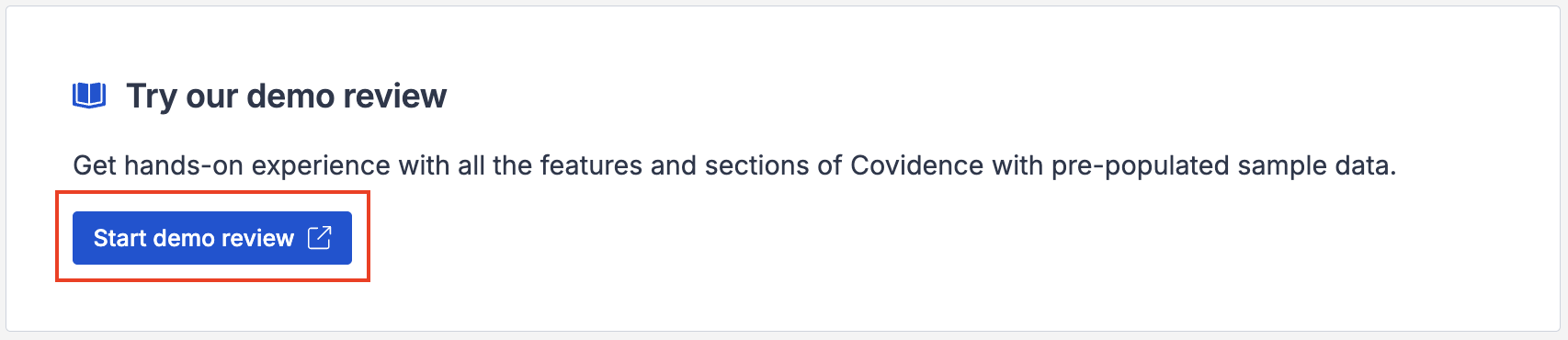
To get familiar with how a Covidence workflow works, you can try our pre-set Demo review. This will allow you to gain hands-on experience and better understand the process. You will find it at the bottom of your dashboard once you have signed in. Give it a go and feel free to explore!
Getting started with Covidence - video tutorials that guide you through the initial area to get you started.
Covidence Knowledge Base - home to all of our comprehensive articles, instructions and advice to FAQs.
Covidence Academy - Learn and understand the essentials of systematic reviews and gain insight with expert-led training and content to guide you through every step of the review process.
Covidence eBook Collection - Download our step-by-step practical guides for Systematic Review Success.
Monthly Open Training Webinars - Join our Community Team for free webinars (registration required) or watch our recent recordings without delay.
Online Support Team- contact our team directly for support on your review by emailing support@covidence.org
When logged into your account, you can also easily contact the Support Team via the chat icon in the lower right corner, and the comprehensive articles from our Knowledge Base from the '?' icon on the upper right corner of the window.
Maintaining Access to Your Work When Leaving the Institution
You are required to add a secondary email address before leaving, as this will ensure uninterrupted access to your Covidence account.
If you need to log back into your Covidence account but cannot because you don’t have access to your university email address anymore, please get in touch by emailing support@covidence.org.