


Support
Access to the Central Council for Research in Homoeopathy (CCRH) Covidence account is managed centrally. To request access or discuss creating a review under the CCRH subscription, contact Dr K. C. Muraleedharan at itsection.ccrh@gmail.com or Dr Deepti Singh at webinarccrh@gmail.com
Covidence offers monthly training webinars (registration required), together with 24-hour methodological and technical support at support@covidence.org. Covidence Academy includes practical guides, step-by-step videos and links to further resources. You can also use the Knowledge Base, online video tutorials, or the chat icon in the bottom-right corner of Covidence when you are signed in.

What is Covidence?
Covidence is a web-based review management platform that supports reference screening, full-text review, data extraction and tracking progress. It is especially useful for teams conducting systematic reviews, meta-analyses, scoping reviews and clinical guidelines.
In Covidence you can:
● Import references - Import from reference managers such as EndNote, Zotero, RefWorks and Mendeley, or from any tool that exports RIS, CSV or PubMed XML. Covidence automatically identifies duplicate references.
● Screen titles and abstracts - Move quickly through screening with keyword highlighting and a streamlined interface. Covidence records each vote and supports single or dual screening.
● Import PDFs in bulk - Transfer PDFs stored in your reference manager to Covidence in a few clicks.
● Screen full text - Make full-text inclusion decisions, record reasons for exclusion and add notes to help resolve disagreements.
● Create forms - Build customisable extraction forms so that you capture only the information your review needs.
● Customise risk of bias (Extraction 1) - Populate risk-of-bias tables by highlighting and commenting on text directly in the PDF.
● Conduct data extraction - Extract data with the form and PDF displayed side by side, then compare forms completed by different reviewers.
● Export - Export review data in common formats so that you can continue your work in other software.
● Collaborate - Invite other reviewers, including colleagues outside CCRH, to work with you.
● Use a demo review - Explore a practice review to familiarise yourself with the workflow and available options.
How to request access to the CCRH Covidence account
Access to CCRH's organisational account is controlled by CCRH administrators; there is no open registration. If you would like to use Covidence for a CCRH review, follow these steps:
Email itsection.ccrh@gmail.com or webinarccrh@gmail.com to request access.
A CCRH administrator will review your request and advise whether the review will be created for you or whether you will be invited to join the organisational account.
When you receive an invitation, accept it from your email. Check your spam folder if it does not arrive within a few minutes. Invitation links can be used once and expire after 30 days.
Sign in to your existing Covidence account or create a new account. Covidence recommends maintaining one account; you can associate more than one email address with it if needed by going to your profile and clicking on 'Add new email'.
If you already have access through CCRH, sign in to Covidence with your existing account credentials.
Creating a review through the CCRH departmental subscription
If you are invited as a member, select Central Council for Research in Homoeopathy (CCRH) when creating a review and click 'Create Review'. A CCRH administrator can also create a review and invite you as an author.
The example below uses a different organisation; your screen will display CCRH.
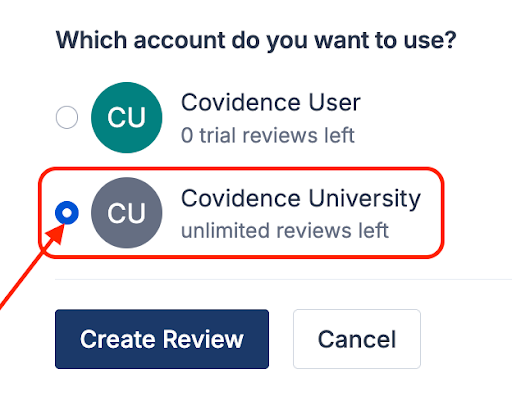
The CCRH departmental reviews are only visible to CCRH account administrators. The administrator can only view the review progress stage and cannot edit or modify it.
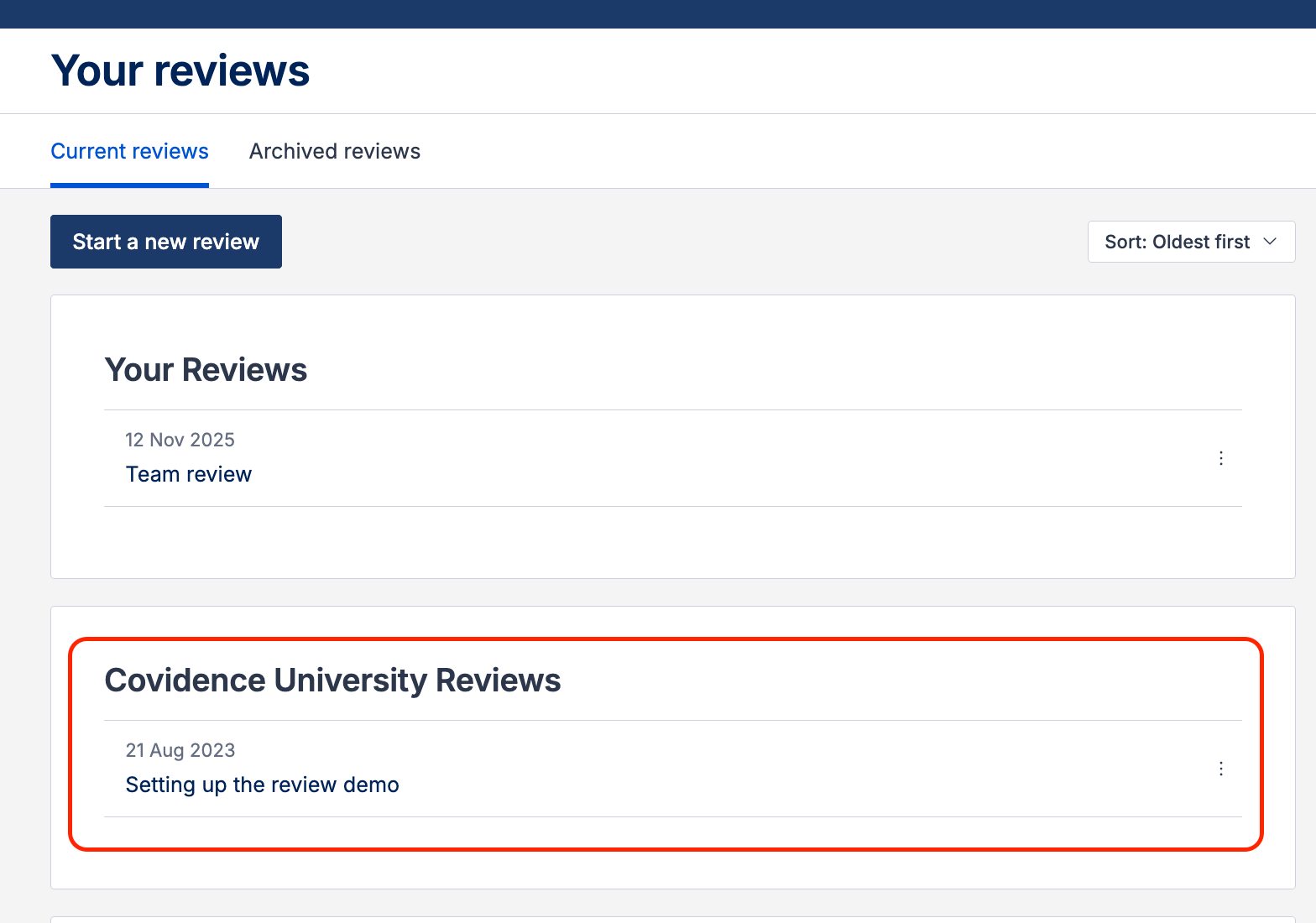
Personal account reviews remain separate and are visible only to their authors and invited co-reviewers.
CCRH reviews appear in a separate section of your account homepage, as illustrated below.
Working with review team members from other organisations?
After a review has been created, its authors can invite co-reviewers, including colleagues outside CCRH. The screenshots below are illustrative.
1. From the homepage ('Your reviews'), select the review to which you want to add co-reviewers and click 'Settings'.

2. In the review settings, select 'Reviewers'.
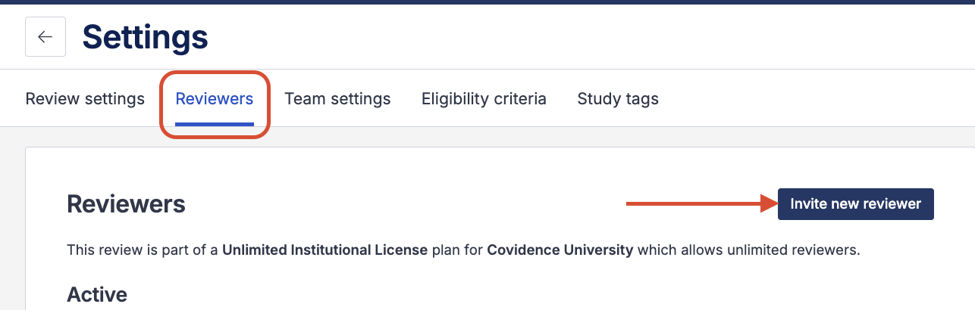
Click 'Invite new reviewer', then enter the reviewer's first name and email address and send the invitation.
Happy Reviewing!